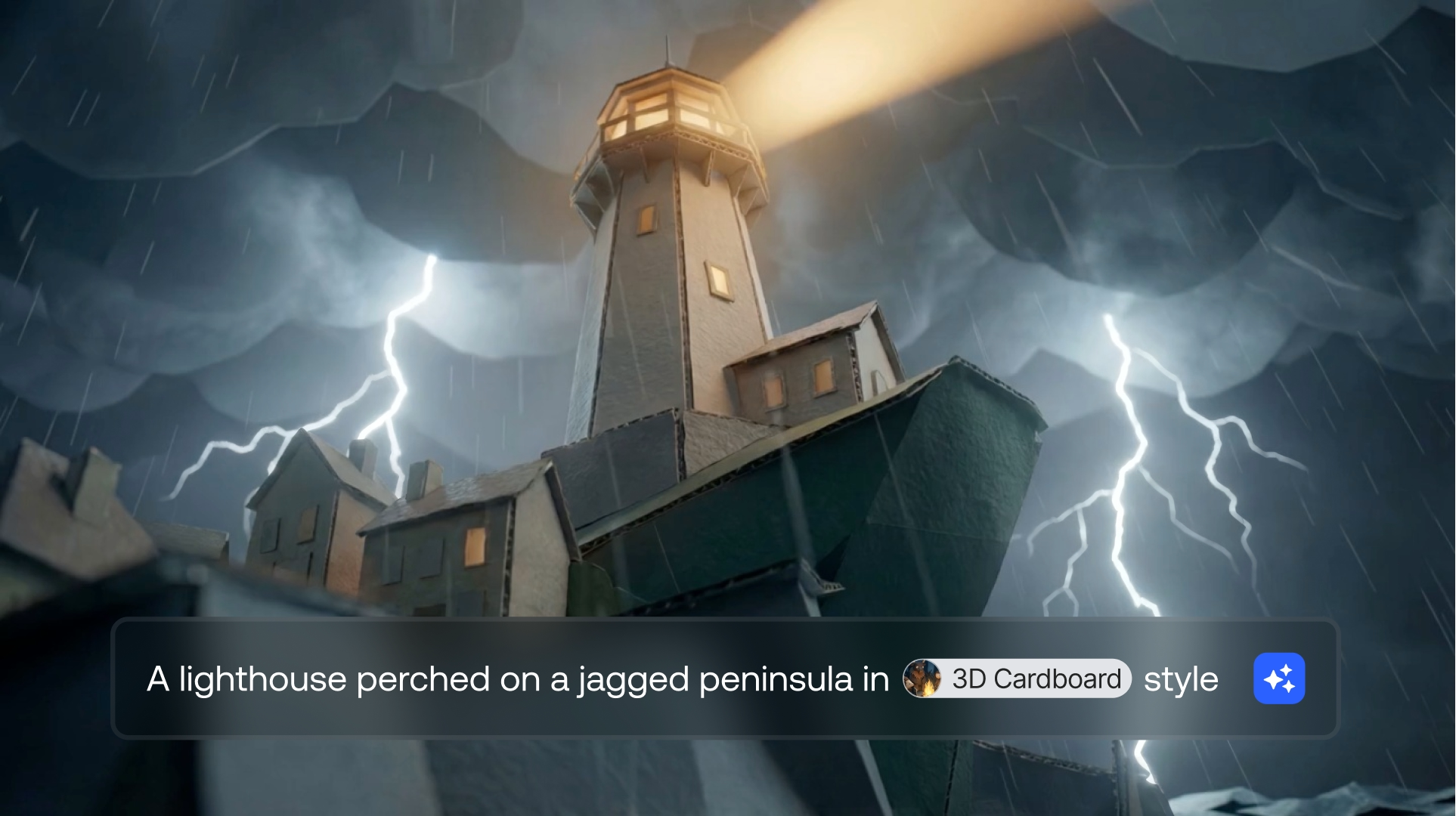

Learn how to define, save, and reuse Custom Style as Elements in LTX Studio. By turning visual references into structured styles, you can generate consistent, on-brand visuals across every level of your project.
LTX Studio enables creators to define visual style using Custom Styles as an Element. Instead of relying on written descriptions, styles are created from real visual references and saved as reusable Elements that guide every generation.
This approach allows teams to maintain a consistent visual language across the project, whether they’re working with brand guidelines, moodboards, or a specific creative aesthetic—while producing new, original assets at scale.
Creating a Custom Style Element
Custom Style Elements let you capture a visual aesthetic once and reuse it across multiple generations.
You can create a Custom Style as Element from several entry points:
- Elements Space – Create a new Style Element directly from the Elements space.
- GenSpace – Use @ in the text box → create a new element → choose Style.
- From uploaded images – Save an uploaded image into a Style Element using the save-as-element icon.
- From generated images – Generate an image and save it as a Style Element.
Once created, the Style Element becomes a reusable asset that can be applied wherever consistent styling is needed.
Uploading Visual References to Define Your Style
When creating a Custom Style Element, upload up to 10 visual references that represent the desired aesthetic or vibe. These can include brand assets and visual guidelines, product imagery, campaign visuals, moodboards, or creative inspiration.
The model learns the visual language from these references, including the overall look and feel, tone and mood, and aesthetic patterns and stylistic cues. By defining style visually, creators achieve more accurate and consistent results across generations.
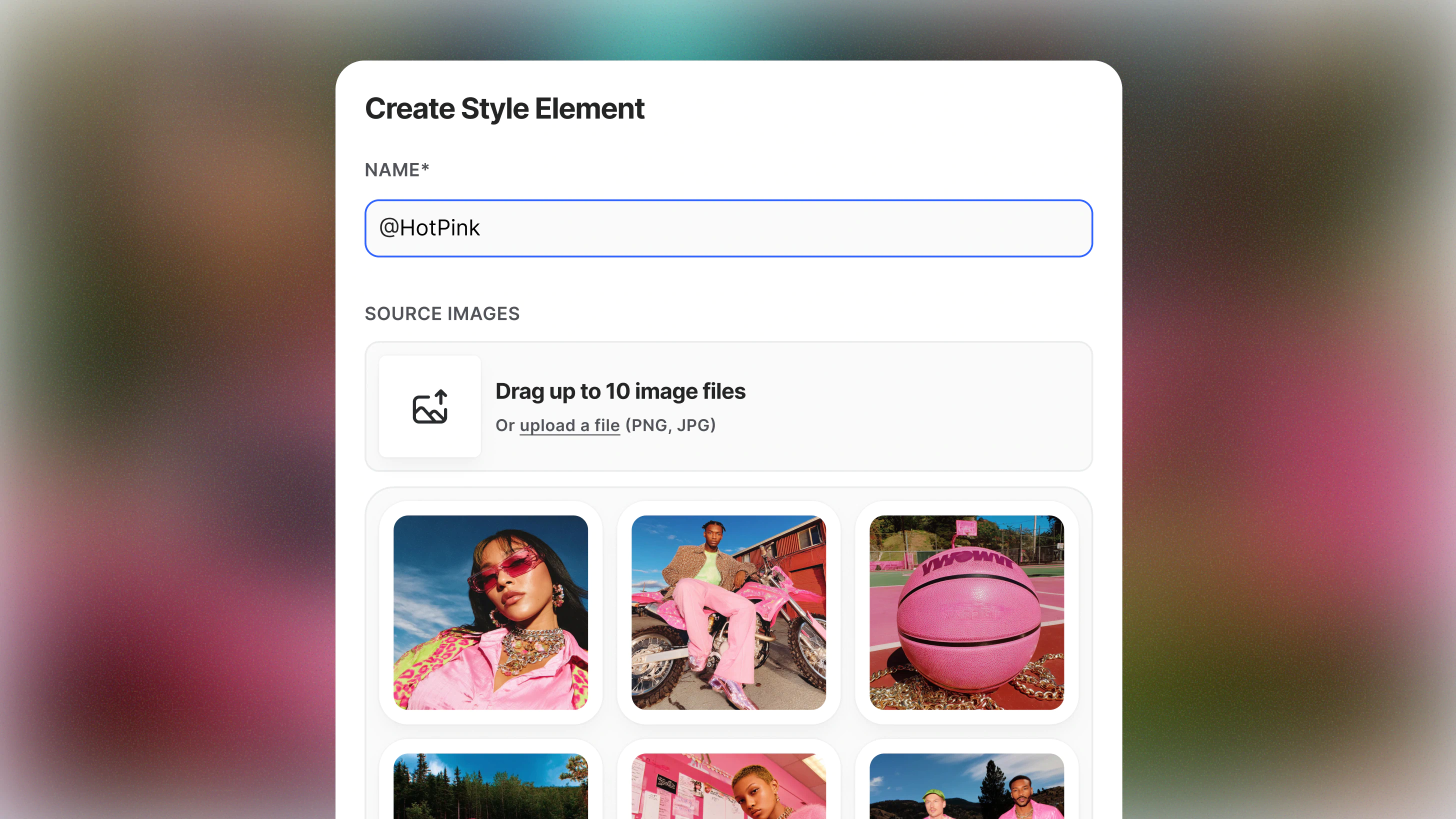
Tips for best results:
- Avoid repeating the same visual elements across multiple reference images, as the model may overemphasize them in generations.
- Tag the Style Element at the end of your prompt to clearly apply the intended style during generation.
Generating Content with a Custom Style Element
After creating a Style Element, generating content is simple.
- Write a standard prompt describing the content you want to generate.
- Apply your Custom Style Element to the generation.
- The model blends the prompt with the learned visual aesthetic.
The result is original, on-brand output that stays visually aligned with the defined style—new assets, same look and feel.
Why Custom Styles Matter
Professional creators need a reliable way to maintain visual consistency while scaling production. Translating visual identity into text is often imprecise and time-consuming.
Custom Style as Element provides a clearer, more accurate way to guide the model using real visual references. This makes it easier to collaborate, iterate, and create new content while staying aligned with a defined aesthetic.
Conclusion
Custom Styles as Elements give creators a powerful way to define and reuse visual aesthetics in LTX Studio. By grounding style in real visual references, teams can generate consistent, high-quality visuals while staying true to their creative vision.
{{blog-banner-video06}}
Style FAQs
How do you apply styles to your entire project in LTX Studio?
To apply a style across an entire project, create or select a Custom Style Element and apply it during generation. The Style Element guides the visual aesthetic of all generated assets, ensuring a consistent look and feel across the project. Because the style is saved as a reusable Element, it can be applied repeatedly across generations to maintain visual alignment throughout the workflow.
How do you use Style Reference for custom looks?
Custom looks are created by turning visual references into a Custom Style Element. Upload up to 10 images, such as moodboards, brand assets, or product imagery, when creating a Style Element. The model learns the visual language from these references, including tone, mood, and aesthetic patterns, and uses it to guide future generations. This allows users to define style visually rather than relying on complex written descriptions.
Can you customize styles for individual scenes and shots?
Yes. You can create multiple Custom Style Elements and use each one whenever you need. Styles are not automatically applied across a project. Instead, you can choose which Style Element to use for each generation, allowing different scenes, shots, or moments to have their own visual style.


Maximize your creative potential with AI-powered tools
Maximize your creative potential with AI-powered tools


.webp)
.png)

.png)



