.webp)

- Consistent characters maintain identical facial features, styling, and identity across every scene, shot, and angle without visual drift
- Character consistency requires using Elements to centralize character assets, tagging characters with @ mentions in prompts, and following best practices for reference images
- LTX Studio's Elements system solves AI's "memory" problem by treating characters as persistent, reusable assets across unlimited shots
- Best practices include frontal views, neutral backgrounds, soft lighting, and detailed descriptions to maximize consistency
Impactful stories need characters that viewers recognize, believe, and root for. While this may seem obvious, achieving this kind of visual continuity in the AI space has been a long-standing challenge.
Creating consistent AI characters, digital actors that maintain their identity across shots, has been a pain point for both independent creators and major production studios.
You describe a character and get a great first image. Generate again? The eyes shift color. The hair changes length. The face transforms entirely. Each AI generation starts from scratch, producing fractured stories and confused viewers.
LTX Studio's Elements system delivers a breakthrough, offering filmmakers and marketing teams the ability to create a consistent character across every shot, angle, and environment. This tool brings cinematic-level consistency to your AI-generated videos.
This guide will show you how to use LTX Studio's Elements workspace to generate custom characters and maintain perfect visual fidelity across projects.
More of a visual learner? Visit LTX Studio on YouTube for a visual tutorial.
{{blog-banner-video06}}
What Is a Consistent Character?
Continuity is the invisible thread that holds a viewer's attention and a production's believability together.
This is why, on big-budget productions, the Script Supervisor, affectionately known as "scripty," is always behind the monitor on set. Their sole job is to ensure that character continuity remains consistent, preventing distractions that might break the audience's immersion.
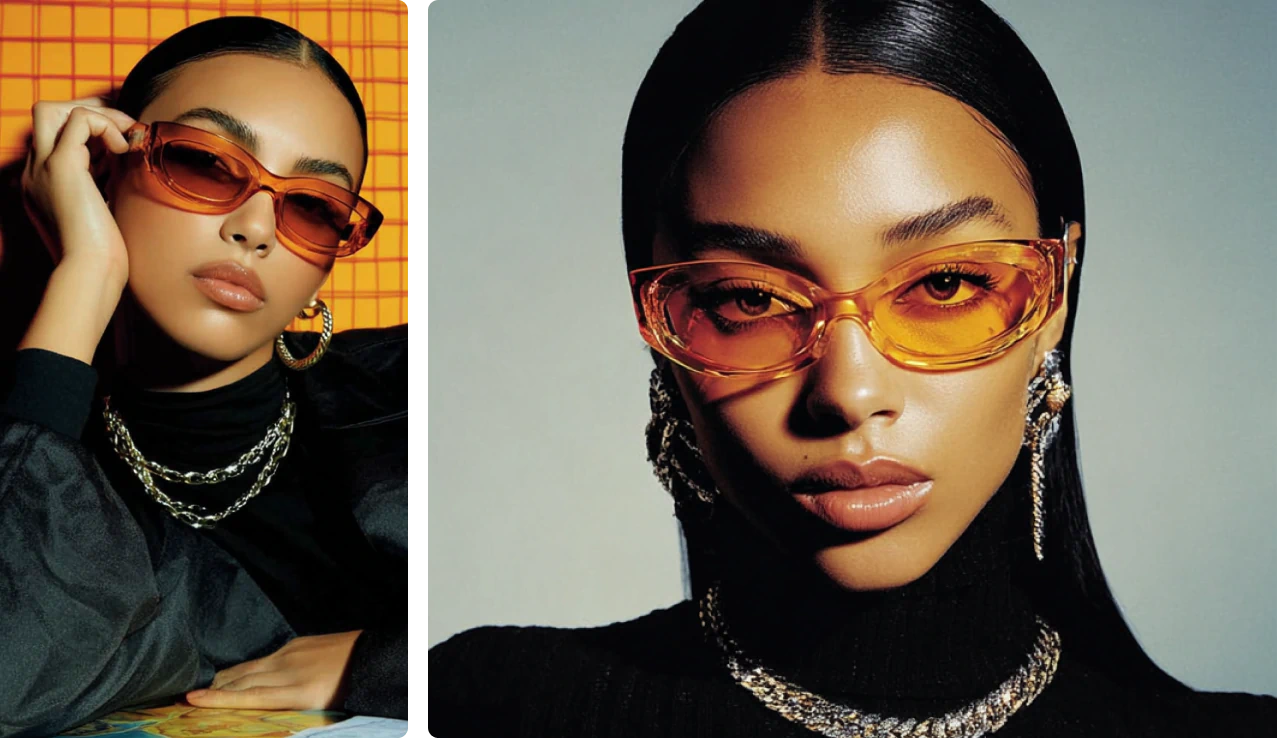
In AI video production, a consistent character is a digital persona that maintains the same face, outfit, hairstyle, and visual identity across every scene.
Whether you're building a branded mascot or a protagonist for a short film, visual consistency anchors narrative, builds emotional impact, and streamlines your workflow.
LTX Studio makes this possible through its Elements system, giving users the tools to create custom characters using photo uploads, detailed text prompts, or AI generation, then reuse those exact characters across unlimited scenes.
Why Character Consistency Matters
Narrative Cohesion
Viewers connect more deeply with characters who look, act, and evolve in ways that feel aligned with how we understand them. Sudden visual changes like mismatched faces or outfits break immersion and disrupt potential emotional impact.
Brand Identity
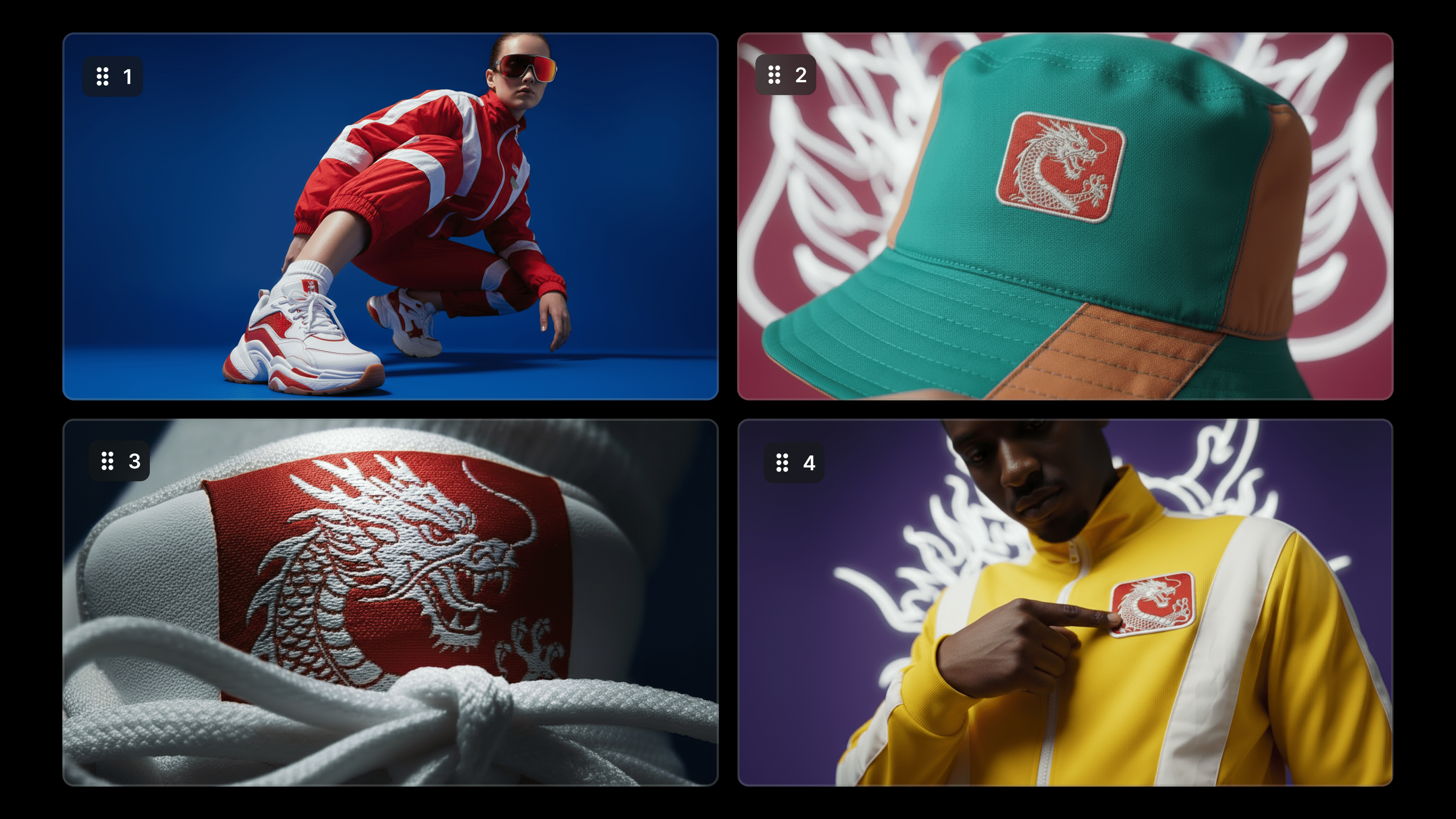
In advertising, recognizable AI avatars and spokespeople strengthen message recall and maintain visual alignment across campaigns, platforms, and edits. This is why a green gecko, doughboy, and caveman can immediately evoke associations to specific brands. This demonstrates the power of character continuity as an effective marketing strategy.
Production Efficiency
When character fidelity is built into the system, creators reduce errors, eliminate unnecessary re-renders, and unlock faster timelines for feedback and delivery.
The AI Consistency Challenge
Traditional AI generation models have key limitations making character consistency difficult:
- Lack of memory mechanism: Each generation is independent. The model cannot "remember" previously generated character features
- Style and identity entanglement: Models struggle to distinguish between character identity and artistic style
- Perspective change challenges: Presenting the same character from different angles requires understanding 3D spatial relationships
- Attention dispersion: Models must simultaneously focus on character, background, and style, easily losing key features
LTX Studio's Elements system solves these limitations by storing character references as persistent assets that get reused systematically rather than regenerated from scratch each time.
How to Create Consistent Characters Using Elements
Creating consistent characters through LTX Studio's Elements system is a fast, intuitive process designed to meet the needs of all kinds of professionals. With just a few inputs, you can build a custom character that retains fidelity across your scenes.
All characters are saved in your Elements library, where they can be reused, refined, and seamlessly integrated into any project.
Two Ways to Create Character Elements
Option 1: Create within the Elements Workspace
Start from the dedicated Elements workspace when planning your project upfront:
- Open Elements inside LTX Studio
- Under "Create New Element," choose Character
- Generate or upload an image to define your character's appearance
- Provide detailed description including age, hairstyle, outfit, demeanor, and visual style
- Name the character clearly (e.g., "@Protagonist" or "@Detective_Martinez")
- Assign a voice if this is a speaking character
- Click Save
Your new Character Element now appears in your project's Elements panel, ready to reuse in any shot or scene.
This approach works best when you're establishing your cast before generating scenes, similar to traditional casting processes where you select actors before filming.
Option 2: Save Character from Gen Space
Discover a great character while generating scenes? Save it as an Element immediately:
- Open the Gen Space
- Generate a character image you want to preserve
- In the top-right corner of the image, click the Tools menu
- Select "Save as Element"
- Choose type: Character
- Name your character
- Click "Save Element"
Once saved, this Character Element becomes available across all your projects. The character you just discovered can now be systematically reused with perfect consistency.
This workflow accommodates creative discovery. When generation produces an unexpected character that perfectly fits your vision, you can preserve it immediately.
Using Character Elements Across Shots
Once you've created a Character Element, tagging ensures that exact character appears in every scene where they're mentioned.
How to Tag Character Elements:
- Open a shot in the Gen Space or Storyboard
- Click inside the prompt or shot description field
- Type @ followed by your character's name (e.g., @Protagonist)
- Select the Character Element from the dropdown menu
- LTX automatically links that character to your shot
The @ tagging system works like mentioning someone on social media. Type @, start typing the character name, and LTX suggests available Character Elements. This ensures you're referencing the exact character asset rather than generating a new interpretation from description alone.
Managing Character Variations and Outfit Changes
Need your character in different outfits for various scenes? The Elements system handles this elegantly without losing facial consistency.
Create Outfit Variations:
- From the Elements workspace, select your Character
- Click the three dots menu
- Select "Duplicate"
- Modify the clothing details in the 'Clothing style' and 'Main outfit' fields
- Give your duplicated character a distinct name (e.g., "@Sarah_casual" or "@Sarah_formal")
- Save the variation
This creates a new version of your character while preserving core identity. The facial features, body type, and recognizability remain identical. Only the specified elements (clothing, accessories) change.
When you need different versions in scenes, simply tag the appropriate variation: @Sarah_casual for home scenes, @Sarah_formal for office scenes, @Sarah_athletic for gym sequences.
Best Practices for Character Consistency
To achieve maximum consistency when creating Character Elements, follow these proven practices.
Use High-Quality Reference Images
For uploaded photos:
- Upload 5-12 high-quality JPG or PNG images
- Include mix of close-ups and full-body shots
- Capture range of angles and facial expressions
- Use clean, well-lit backgrounds (white walls, blank studio setups)
- Ensure high resolution, sharp focus
Avoid:
- Photos with sunglasses, hats, or face obstructions
- Blurry, dark, or low-resolution images
- Group photos or cluttered backgrounds
- Inconsistent lighting across reference photos
Frontal Views for Maximum Flexibility
Frontal views are preferred when creating Character Elements. Frontal angles are the easiest to reuse across scenes and ensure your character remains recognizable from shot to shot.
If your reference image shows the character from a side angle or back view, the AI may struggle to maintain consistent facial features when you need frontal shots later. Start with frontal reference for maximum flexibility.
If needed, use the Gen Space to adjust the angle of your reference image before saving as Element.
Neutral Backgrounds Enable Reusability
Use clean, neutral backgrounds (preferably white or gray) to help Character Elements integrate easily into different environments. Center your subject and leave space around the edges for flexibility when framing.
Busy backgrounds or specific locations in your character reference image limit where that character can appear believably. Neutral backgrounds enable maximum reusability across diverse scenes.
Soft, Even Lighting
Stick to soft, evenly distributed lighting. Avoid dramatic or directional shadows that may clash with shots set in different lighting conditions.
If your character reference has strong side lighting, that baked-in lighting may conflict with scenes requiring different illumination. Neutral lighting provides the cleanest foundation for consistent reuse.
If needed, adjust lighting in the Gen Space before saving. Upload your image as reference and use the prompt: "Turn lighting to soft white studio light."
Detailed but Focused Descriptions
When creating characters from text prompts, provide comprehensive details:
- Physical traits: Age, height, build, hair color and style, eye color, distinctive features
- Clothing: Specific outfit descriptions, color palette, accessories
- Demeanor: Neutral expression works best for baseline character
- Visual style: Cinematic realism, illustrated style, or specific aesthetic
Keep descriptions consistent. Use precise, repeated phrasing. "Brown trench coat" should always be "brown trench coat," not "coat" or "jacket" in subsequent descriptions.
Editing and Updating Character Elements
View and manage all your Character Elements in the centralized Elements workspace. Open any character to update details, modify visual references, or adjust voice assignments.
How to Edit Character Elements
- Go to the Elements workspace
- Select the Character you want to update
- Click "Replace Image" to update visual reference
- Modify description fields for refined control
- Adjust voice assignment if needed
- Save changes
Your updates automatically apply anywhere that Character Element is tagged. Update once, propagate everywhere. This ensures projects stay current without manually updating every individual shot.
Face Switching for Precision Control
For more specific character appearances, use the Face Switch feature:
- Go to Elements workspace
- Select your Character
- Click "Face Switch"
- Drag in your reference image
- Apply the changes
Face switching gives your character a digital facelift while maintaining body type, clothing, and overall composition from the original Element.
Unlock Visual Continuity Across Every Project
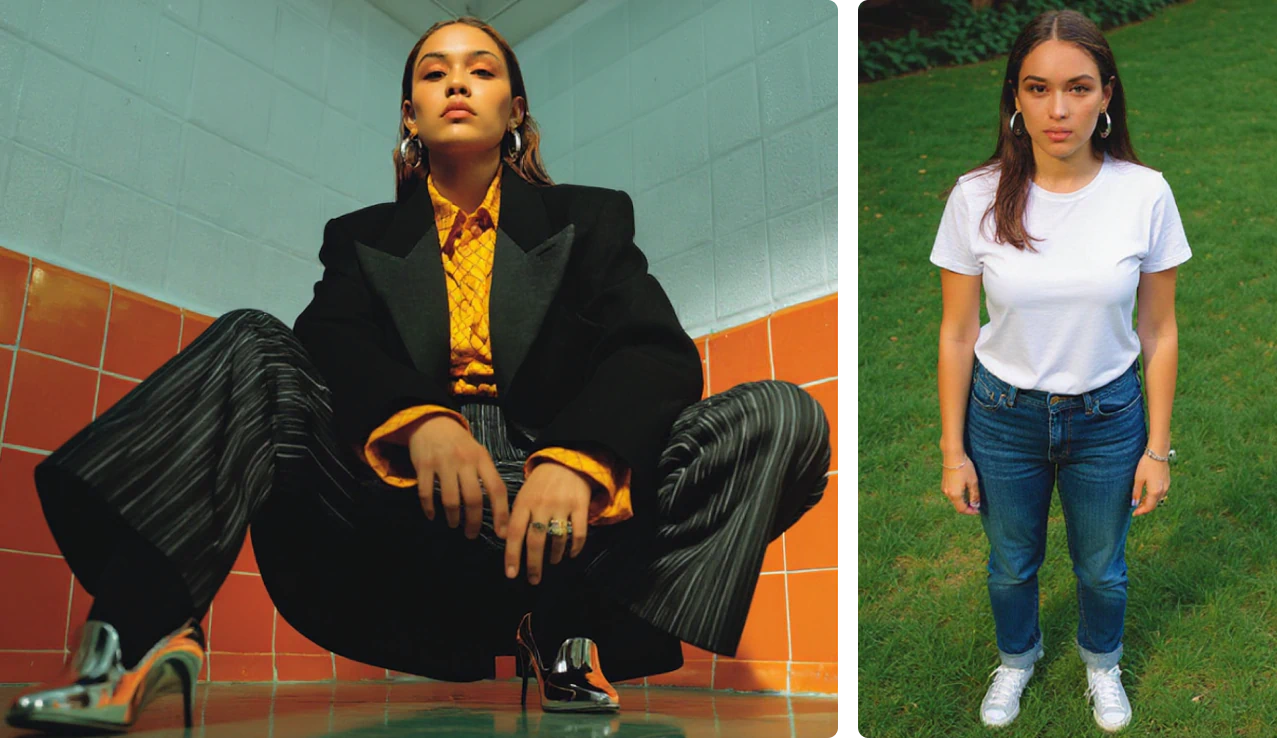
Character consistency used to require deep technical know-how and slow, manual processes. Traditional animation maintained consistency through model sheets showing characters from every angle. Live-action films cast the same actors. Both approaches were resource-intensive.
AI-generated content faced worse problems. Early tools couldn't maintain consistency at all. Each generation produced different interpretations of the same character description.
LTX Studio's Elements system provides scalable, intuitive tools for character consistency without traditional pipeline complexity. You gain:
- Visual continuity across unlimited shots and scenes
- Greater narrative impact through recognizable, consistent cast
- Streamlined workflow eliminating manual character management
- Team collaboration where everyone references identical character assets
Whether you're building an advertising campaign, developing a festival-ready feature, or producing regular social video content, integrating consistent characters into your workflow is now accessible and cost-effective.
{{blog-banner-static04}}
Conclusion
Creating consistent characters separates professional AI-generated content from amateur experiments. Viewers recognize and connect with characters who maintain visual identity across scenes. Inconsistency breaks narrative immersion and undermines storytelling.
LTX Studio's Elements system solves the fundamental challenge of AI character consistency by treating characters as persistent, manageable assets. Create once through Elements workspace or save from Gen Space. Tag with @ mentions in every scene. Update centrally and propagate changes across all appearances.
The technology delivers what traditional AI generation couldn't: perfect character memory. Your protagonist looks identical in scene one and scene fifty. Supporting cast maintains recognizability throughout. Brand spokespeople appear consistent across unlimited campaign variations.
This consistency enables character-driven storytelling at scale. Script-to-video workflows where characters appear across dozens of scenes. Marketing campaigns featuring the same spokesperson across months of content. Animated series maintaining cast consistency across episodes.
Ready to create consistent characters for your next project? Start building Character Elements and experience how centralized character management transforms multi-scene storytelling.
What is a consistent character in AI video production?
A consistent character is a digital persona that maintains the same face, outfit, hairstyle, and style across every scene. LTX Studio's Elements feature enables creators to generate custom AI characters using photo uploads, text prompts, or predefined templates, ensuring professional-grade visual continuity across dynamic sequences for narrative cohesion and brand identity.


Maximize your creative potential with AI-powered tools
Maximize your creative potential with AI-powered tools


.webp&description=Create consistent AI characters that maintain identical faces and features across every scene. Master character consistency techniques for professional results.)


.png)



