

- Turn audio into video instantly using LTX's audio-to-video generation—upload a track, add a prompt, and let sound shape motion and pacing
- Add soundtrack, scene sound, and shot-specific sound effects through LTX Studio's Video Editor for complete audio control
- Layer background music, ambient sounds, and auto-generated SFX to create depth and immersion in your scenes
- Create custom voiceovers with AI-generated narration, record your own voice, or create entirely new voices with emotion controls
- Balance audio levels across tracks to ensure music enhances rather than overpowers dialogue and key moments
Sound transforms video from visual content into immersive storytelling. The right music sets mood, voiceovers guide narrative, and sound effects add realism that keeps audiences engaged.
LTX Studio gives you complete audio control directly in the Video Editor. Layer soundtrack, ambient sound, and shot-specific effects without switching between multiple tools or managing complex timelines. Or flip the workflow entirely—start with audio and generate video that's shaped by sound.
This guide shows you how to add professional-quality audio to your videos using LTX Studio's integrated sound tools.
{{blog-banner-static03}}
Understanding Audio Layers in Video
Professional video audio consists of multiple layers working together. Each layer serves a specific purpose and contributes to the overall soundscape.
Background Music (Soundtrack)
Sets the emotional tone and pacing of your entire project. This layer runs continuously beneath other audio elements.
Sound Effects (SFX)
Shot-specific sounds that match on-screen action—footsteps, door slams, object interactions.
Voiceover and Dialogue
Narration and character speech that drives your narrative forward.
Understanding how these layers interact helps you build audio that feels cohesive rather than cluttered.
Generating Video from Audio
LTX can flip the traditional workflow—instead of adding audio to video, start with audio and generate video that's shaped by sound.
How Audio-to-Video Works
Upload a music track, podcast audio, or voiceover, add a text prompt describing the visuals you want, and LTX analyzes timing, rhythm, tone, and content to generate video where motion, shot structure, and pacing follow what it hears.
When to Use Audio-to-Video
This workflow works well for:
- Music videos where visuals should sync to beats and rhythm
- Podcast clips where shot timing follows dialogue pacing
- Quick social content where you need rapid iteration
- Concepts where audio drives the creative direction
Creating Video from Audio
To generate video from audio:
- Upload your audio file or record directly in Gen Space
- Add a text prompt describing the visual style and narrative
- Optionally include an image reference for more control over the look
- Generate—LTX creates up to 20-second video sequences you can review and refine
The result is video built from sound, not manually synced to it. Once generated, you can add additional audio layers in the editor for more complexity.
Adding Audio in LTX Studio
LTX Studio consolidates all audio controls in the Video Editor, accessible from the left sidebar. You can add soundtrack, scene sound, and voiceover without leaving your workspace.
Adding Soundtrack (Background Music)
Background music establishes your video's emotional foundation. LTX Studio offers both curated music libraries and custom upload options.
To add soundtrack:
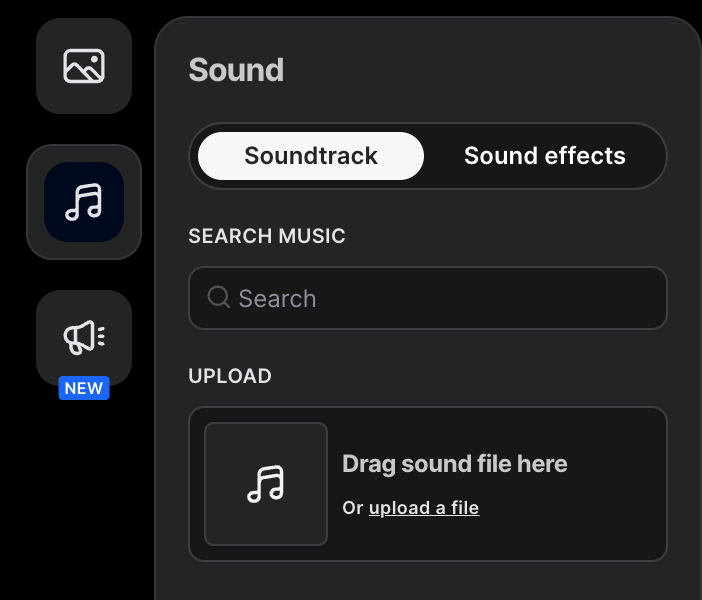
- Open the Video Editor and select the Sound icon from the left sidebar
- Click the Soundtrack tab at the top of the Sound panel
- Search for music by keyword (e.g., "jazz," "cinematic," "upbeat")
- Browse results and preview tracks to find the right match
- Select your track to apply it to your project
- Upload custom audio (optional) by clicking "Or upload a file" and selecting your MP3 or OGG file
Your soundtrack applies across your entire video timeline, creating consistent mood and pacing.
Adding Shot-Specific Sound Effects
Individual shots often need unique sound effects that match specific actions or moments. Choose SFX from LTX Studio's library or add your own:
To add SFX:
- Open the Video Editor and select the Sound icon from the left sidebar
- Click the Sound Effects tab at the top of the Sound panel
- Browse results and preview tracks to find the right match
- Select your track to apply it to your project
- Upload custom audio (optional) by clicking "Or upload a file" and selecting your MP3 or OGG file
SFX analyzes your visual content and creates sound effects that sync with on-screen action—no manual timing required.
Creating Voiceovers with AI Narration
Voiceover adds narrative depth and guides viewers through your story. LTX Studio's voiceover system combines character voice selection with emotion controls for natural-sounding narration.
Selecting a Voice
LTX Studio offers a library of AI-generated voices with different characteristics—gender, age, pitch, and tone. Choose voices that match your brand or story needs.
To select a voice:
- Click the Voiceover icon in the Video Editor sidebar (speaker icon)
- Choose from preset voices in the voice library
- Preview different options by playing sample audio
- Select your narrator to apply across all scenes
You can also create custom voices that match specific character requirements or brand guidelines.
Create Your Own Voice
For more personalized narration, record your own voiceover directly in LTX or create entirely new AI voices.
To record your own voice:
- Open the Voiceover panel in the Video Editor
- Select "Record" to capture audio directly in your browser
- Record your narration and review the playback
- Apply to your selected scene or shot
To create a new AI voice:
- Navigate to the voice library in the Voiceover panel
- Select "Create New Voice"
- Customize voice characteristics including pitch, tone, and style
- Save your custom voice for consistent use across projects
Adding Voiceover Script
Once you've selected a voice, add narration text scene by scene for precise control over timing and content.
To add voiceover text:
- Navigate to Storyboard view and select your scene
- Click "Sound" in the scene settings panel
- Select the "Voiceover" box
- Paste or type your narration (maximum character count shown)
- Review and adjust to ensure audio/video sync
The character limit ensures your narration fits the scene duration without awkward cutoffs.
Adding Emotion and Emphasis
Natural speech includes variation—pauses, emphasis, intensity. LTX Studio lets you control these elements through text formatting.
Emotion controls:
- ALL CAPS: Adds intensity and volume
- Ellipses (...): Creates pauses and hesitation
- Extended letters: Emphasizes specific words (e.g., "sooo good")
- Multiple languages: Write in different languages for localized content
These controls give you fine-grained control over delivery without complex audio editing.

Layering Audio for Professional Results
Professional audio isn't about adding every possible sound—it's about choosing the right layers and balancing them effectively.
Start with foundation
Add your soundtrack first to establish overall mood and pacing.
Build environment
Layer scene sound to create believable locations and atmosphere.
Add specificity
Enable Auto SFX on key shots where action needs emphasis.
Finish with narrative
Add voiceover last so you can adjust other layers to support dialogue.
Balance levels
Ensure soundtrack doesn't overpower voiceover, and scene sound doesn't compete with shot-specific effects.
Listen to your full mix and adjust individual elements until everything works together cohesively.
{{blog-banner-video03}}
Best Practices for Video Audio
Match music to pacing
Fast-paced videos need energetic music. Slow, contemplative content needs space and restraint.
Avoid songs with lyrics when using voiceover
Competing vocals make it difficult for viewers to focus on narration.
Use royalty-free music
Protect your content from copyright issues by sticking to licensed or royalty-free tracks.
Test on different devices
Audio that sounds balanced on studio monitors might feel off on laptop speakers or phone audio.
Leave breathing room
Don't fill every second with sound. Strategic silence creates impact and gives viewers space to absorb information.

Conclusion
Audio quality separates amateur video from professional content. LTX Studio gives you complete control over soundtrack, scene sound, sound effects, and voiceover—all from a single integrated workspace. And when audio comes first, you can generate video that's shaped by sound from the start.
Layer audio strategically, balance levels carefully, and use emotion controls to create narration that feels natural. The right sound design transforms visuals into immersive experiences that hold attention and drive engagement.
Ready to elevate your video with professional audio? Start adding sound in LTX Studio and bring your stories to life with cinematic-quality sound design.
{{blog-banner-static01}}
Adding Sound To Video FAQs
How do you add music and sound effects to a video?
In LTX, go to the Soundtrack tab to select music by keyword or upload your own MP3/OGG file. Add shot-specific sound effects through the Sound Effects panel in the Video Editor.
What are best practices for adding background music to videos?
Select music that matches your video's mood and pace, avoid songs with lyrics when using voice-overs to prevent competing vocals, use royalty-free music to avoid legal issues, and adjust audio levels so background music complements rather than overpowers your content and narration.
What types of audio can you add to videos?
You can add four types of audio to videos: background music to set the mood, voiceover narration for storytelling, sound effects for impact, and original audio from recording. You can also generate video from audio using LTX's audio-to-video feature. Layering these elements together creates a rich, professional soundscape that keeps audiences engaged.


Maximize your creative potential with AI-powered tools
Maximize your creative potential with AI-powered tools





.png)



